Table of Contents
- Can You Download YouTube Shorts Directly to Your Gallery?
- How to Download YouTube Shorts in Gallery
- How to Save YouTube Shorts to Gallery on Android
- How to Download YouTube Shorts to Camera Roll on iPhone
- Benefits of Downloading YouTube Shorts Without an App
- Why Is My Downloaded YouTube Short Not Showing in Gallery?
- What Video Quality Should You Choose?
- Final Thoughts
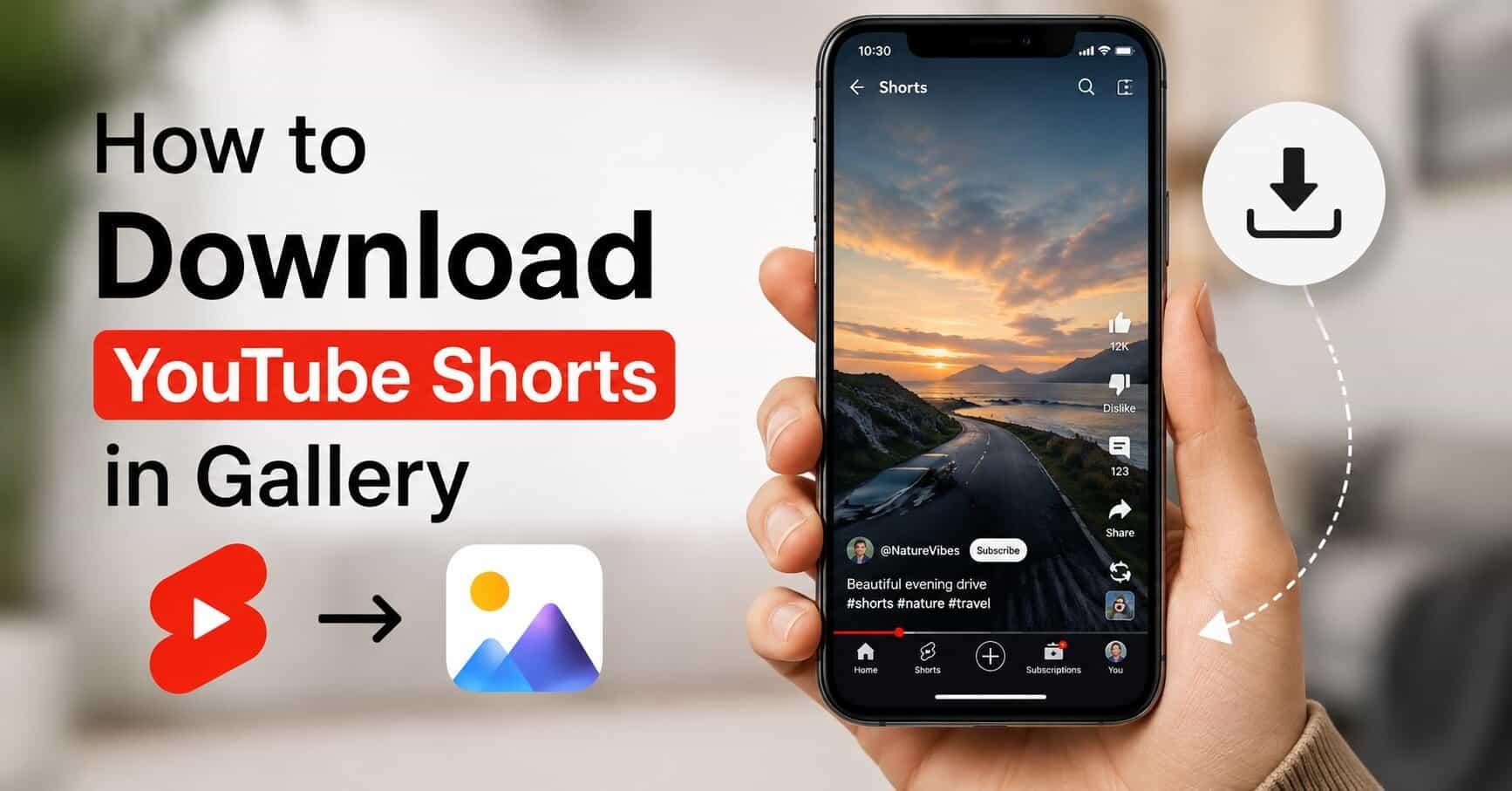
YouTube Shorts are fun to watch, but saving them directly to your phone’s Gallery is not always easy. The Download option in YouTube is mainly for watching videos offline inside the YouTube app, not for saving them as a normal video file on your phone.
If you want to save a Short as an MP4 file, there is another simple way to do it. In this guide, you’ll learn how to download YouTube Shorts in Gallery on Android and iPhone, where the downloaded video is saved, and what to do if it does not appear in your Gallery or Photos app.
Can You Download YouTube Shorts Directly to Your Gallery?
Yes, you can download YouTube Shorts and save them to your phone’s Gallery, but you need a YouTube Shorts downloader tool to save the video as a normal MP4 file. Simply you have to copy the Shorts link, paste it into a browser-based downloader, choose your preferred quality, and download the video.
You can then find the downloaded MP4 in your phone’s Downloads folder or Gallery and watch, share, or edit it like a regular video.
You can’t save a YouTube Short to your Gallery using YouTube’s built-in Download button. That option saves the video for offline viewing inside the YouTube app only, not as a normal video file in your Gallery.
How to Download YouTube Shorts in Gallery

Here’s the easy way to save a YouTube Short as an MP4 file directly on your phone:
- Open the YouTube app and find the Short you want to save.
- Tap the Share icon below the video.
- Copy the video link.
- Search for youtube shorts downloader tool in browser
- Find SocialKing’s YouTube Shorts Downloading tool
- Open tool in your browser.
- Paste the Shorts URL into the input box.
- Choose the video quality you want from the available options.
- Tap the download button and wait for the file to process.
- Open your Downloads folder, Gallery, or Photos app to find the saved MP4.
This works entirely in your browser, so there’s nothing extra to install, a practical way to save YouTube Shorts to the phone gallery when you want the actual video file.
How to Save YouTube Shorts to Gallery on Android
The process on Android follows the same basic steps, but it helps to know where files actually land.
- Copy the Shorts URL using the Share button, as described above.
- Paste the link into a browser-based downloader and select your preferred quality.
- Once the download finishes, check your Downloads folder first, the default location for most browser downloads on Android.
- If the video isn’t in your Gallery app yet, open your Files app, locate the MP4 in Downloads, and move it into your DCIM or Movies folder so Gallery picks it up.
Android sometimes saves browser downloads to a general Downloads directory rather than the folder Gallery scans by default. Moving the file usually solves this in seconds.
How to Download YouTube Shorts to Camera Roll on iPhone
iPhone handles downloads a bit differently, since Safari routes files through the Files app rather than directly into Photos.
- Copy the Shorts link from the YouTube app using Share > Copy link.
- Open a browser-based YouTube Shorts downloader in Safari or Chrome.
- Paste the link, choose a quality, and tap download.
- Check the Files app, usually under Downloads or On My iPhone, for the saved MP4.
- If it’s not already in your Camera Roll, tap the video, tap Share, and select Save Video to move it into Photos.
This extra step is normal on iPhone and isn’t specific to any single downloader, it’s simply how iOS handles files that arrive through the browser instead of a native app.
Benefits of Downloading YouTube Shorts Without an App
You don’t need to install a separate app to save Shorts as MP4 files. A browser-based tool handles the entire process:
- Works directly in your phone or computer’s browser
- No app installation or account sign-up required
- Simple copy-and-paste workflow
- Works on Android, iPhone, and desktop browsers alike
This is often more convenient than a dedicated app, since it avoids extra permissions and storage space. SocialKing’s YouTube Shorts Downloader is one of the best option, this is an independent tool that allows you to download any short video without login or signup.
Why Is My Downloaded YouTube Short Not Showing in Gallery?
If your download doesn’t appear where expected, it’s usually one of these issues:
- Saved to Downloads, not Gallery: Check your Downloads folder or Files app first.
- No Gallery/Photos Permission: Enable storage or photo access for your browser in device settings.
- Still processing: Larger files or slower connections can take a few extra moments.
- Unsupported format: Confirm the file extension is MP4, which most Gallery apps support.
- Low storage space: Free up space and try again.
What Video Quality Should You Choose?
Most downloaders offer a few quality options, typically ranging from 360p up to 1080p, depending on what’s available for that specific video. Choose 720p or 1080p for better clarity, especially if you plan to edit or repost the clip somewhere. Choose 360p or 480p for a smaller file size or limited storage. Not every Short is available in every resolution, so it’s worth checking the options before downloading.
Final Thoughts
The easiest way to download a YouTube Short in a gallery is very simple, just copy the Shorts link, paste it into a YouTube Shorts downloader, choose your quality, download the MP4, and locate or save it in Gallery or Photos. This gives you an actual video file, unlike YouTube’s official offline download, which only works inside the app itself.
For a quick, no-app way to save public Shorts to your device, try the SocialKing YouTube Shorts Downloader, just paste a link and get your MP4 in a few taps.
Frequently Asked Questions
How do I save YouTube Shorts to my gallery?
Can I download YouTube Shorts without an app?
Can I download YouTube Shorts as MP4?

Siya Singh
Siya Singh is a content strategist and social media expert with 9+ years of experience in organic growth and paid advertising strategies. Specializing in Instagram and YouTube optimization, Siya conducts in-depth research on platform algorithms, content performance, and ad effectiveness. Her data-backed insights on audience targeting and conversion strategies help creators and brands maximize their social media ROI on SocialKing's blog.
Get social growth tips in your inbox
Join the SocialKing newsletter — no spam, unsubscribe anytime.


